
Product/March 17, 2026
Custom Prompts vs Templates: Which Should You Use?

SK
Co-founder
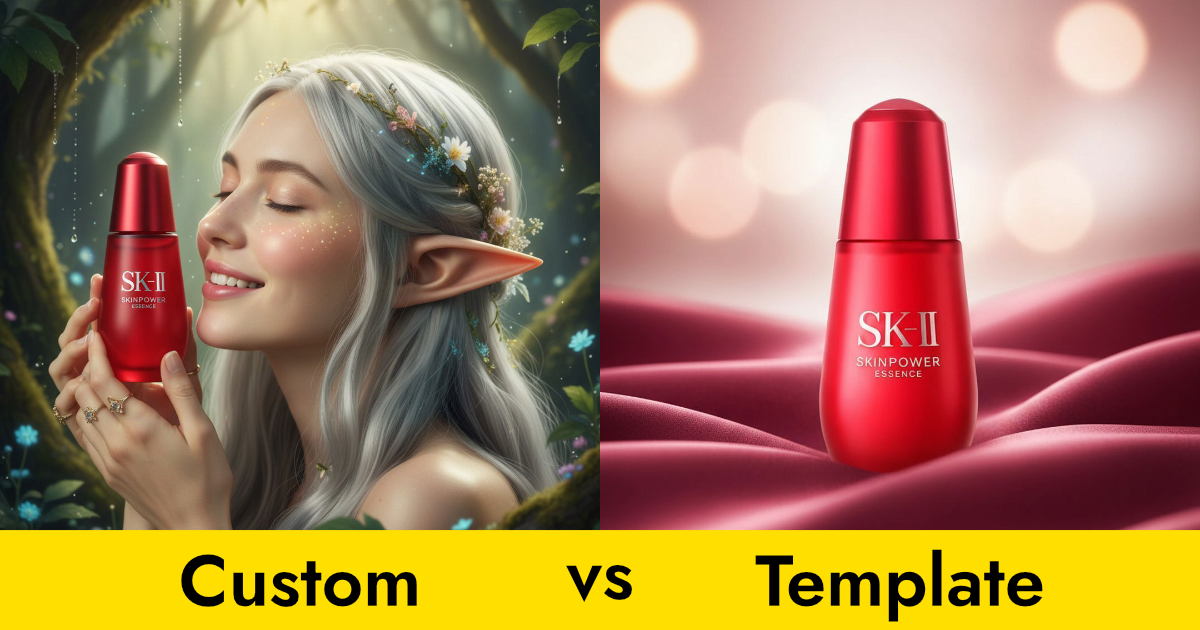
Pebblely offers two ways to generate product photos: templates and custom prompts. Here's when to use each for the best results.
When you click on a product in the new Pebblely, you'll see two tabs: Templates and Custom.
Both generate beautiful product photos. But they work differently, and each shines in different situations.
Here's a practical guide to help you pick the right one and get the most out of both.
Templates: fast, consistent, zero effort
Templates are 40+ pre-made themes: Cafe, Studio, Kitchen, Water, Nature, and many more. You pick one, hit Create, and get a polished product photo in seconds. No typing required.
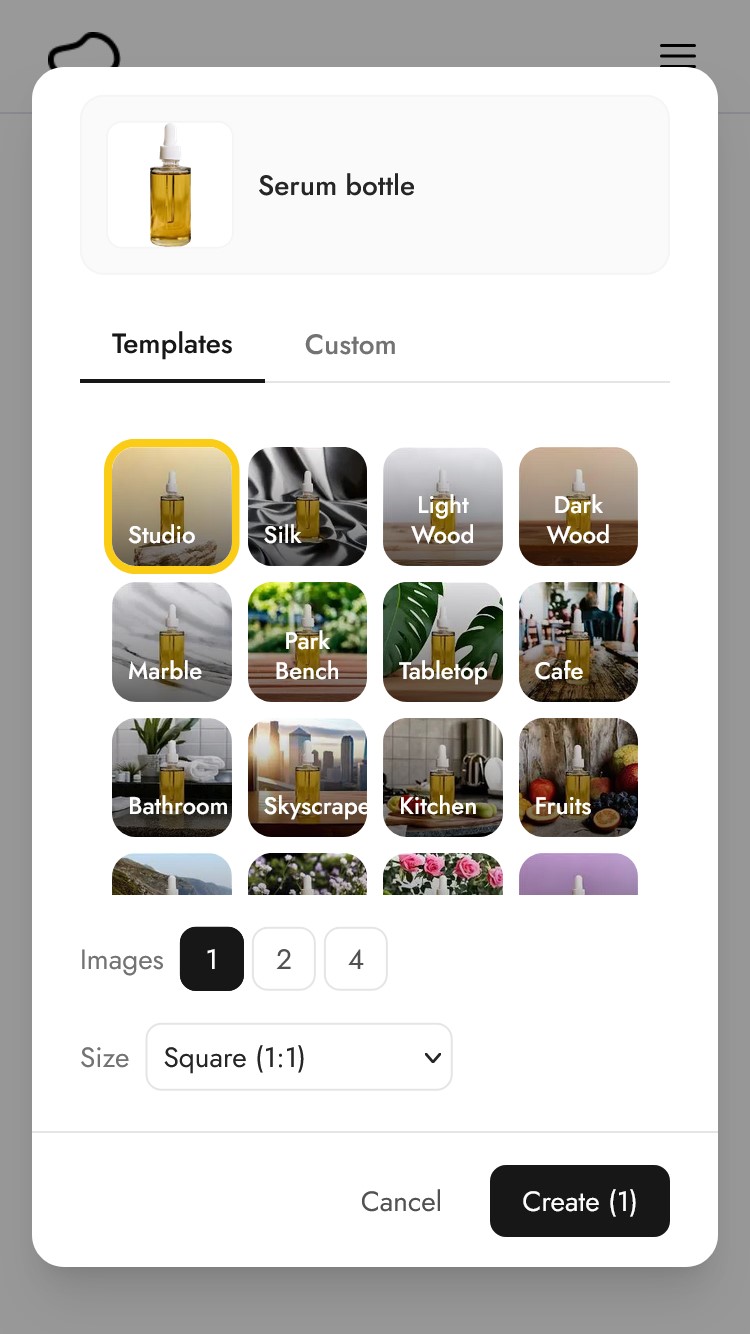
When templates shine
You need images quickly. Templates remove the guessing game entirely. Pick a theme, generate, done. If you're listing a new product and need photos right away, templates are the fastest path.
You want consistency across products. Running the same template on your entire catalog gives you a cohesive look. Every product gets the same style of background, lighting, and props. Perfect for a product page or storefront that needs to feel unified.
You're not sure what you want yet. Templates are great for exploration. Try a few different themes to see which vibe works for your product. You might discover that your skincare line looks unexpectedly great in the Kitchen theme, or that your tech gadget pops in the Water theme.
You're experiencing creative block. Staring at a blank prompt field can be paralyzing. Templates give you a starting point without needing to come up with a scene from scratch.
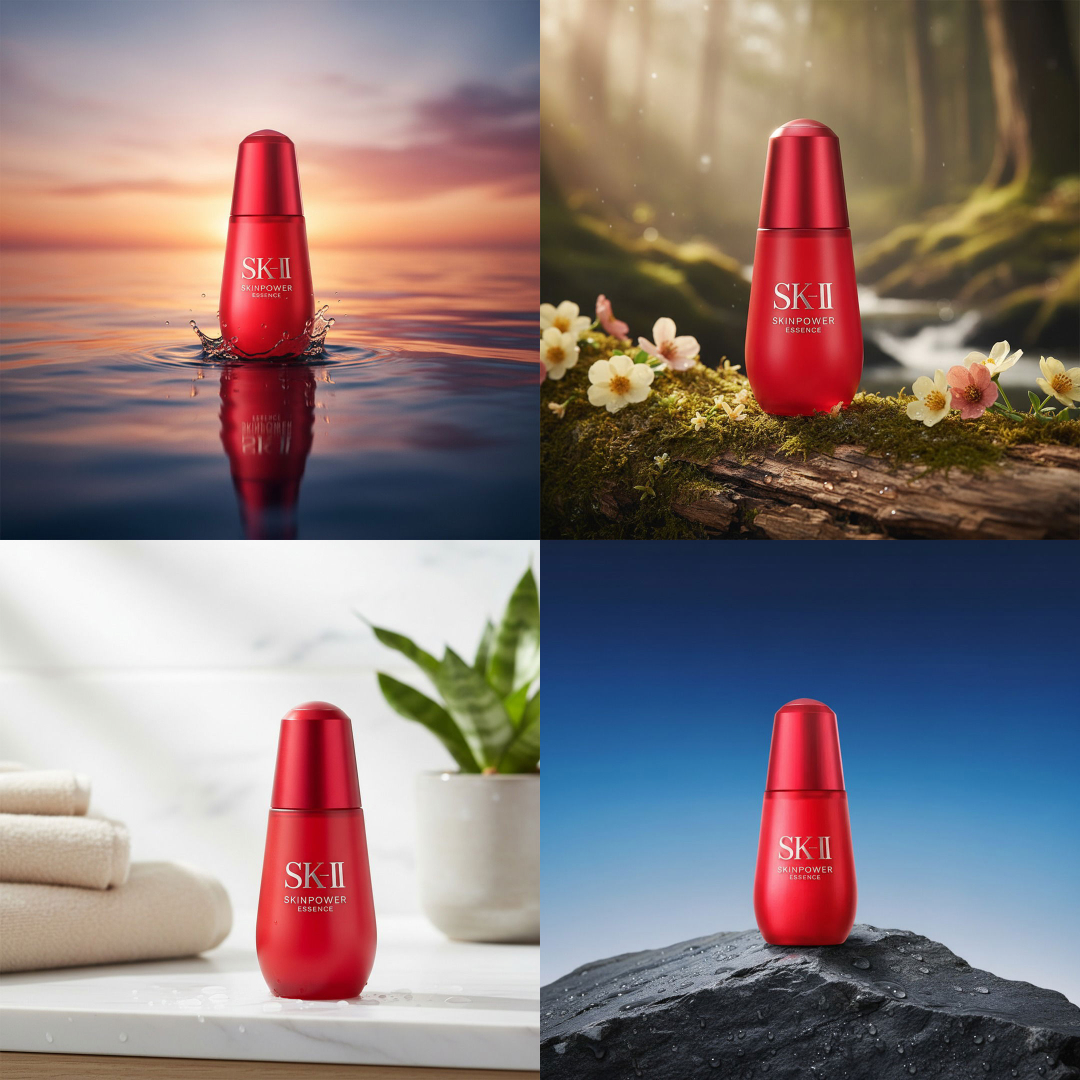
Custom prompts: specific, creative, fully yours
Custom prompts let you describe exactly the scene you want. Type something like "on a marble countertop with warm morning light" or "a woman holding this perfume bottle in a garden" and the AI builds it for you.
You can also pick a style image to influence the overall aesthetic, or choose a color to match your brand palette.
To illustrate the versatility of the custom prompt, here's an example of a "close-up shot of a female elf holding the product to her face in delight".
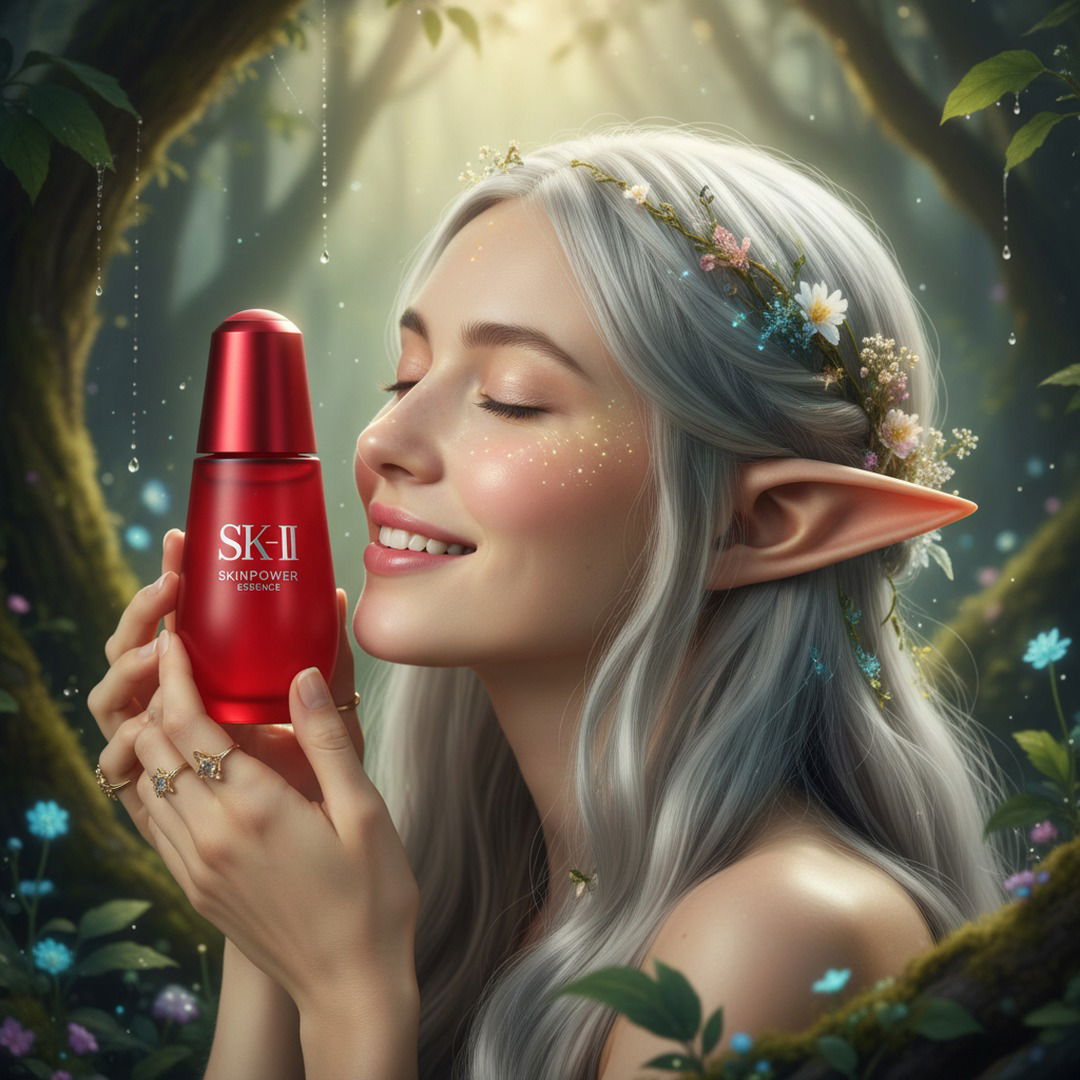
When custom prompts shine
You have a specific scene in mind. If you already know you want your candle on a windowsill with rain outside, or your sneakers on a basketball court, a custom prompt will get you there. Templates can't do this level of specificity.
You need lifestyle shots. Want a person holding your product? Someone wearing your jewelry at a dinner party? Custom prompts handle scenes with people and real-world contexts, the kind of shots that used to require a model, a location, and a photographer.
You want to match a brand aesthetic. If your brand has a distinct visual identity say, muted earth tones with natural textures, you can describe that in your prompt and pair it with a style image for consistency. This is more precise than picking the closest template.
You're creating content for a specific platform. Need a hero image for a landing page with a clean white gradient on the right side for text? Or a seasonal promotion with autumn leaves? Custom prompts let you design for the context, not just the product.
Side by side: the same product, two approaches
Let's say you're generating photos for a bottle of face serum.
With templates, you might run the Silk template and get a professional shot on a luxurious cloth surface with soft lighting. Then try the Nature template and get the same bottle surrounded by greenery and natural stone. Quick, polished, no decisions needed.
With a custom prompt, you might type "on a bathroom shelf next to folded white towels, with eucalyptus in a glass vase, soft natural light from a window" and get something that feels like it was styled by a photographer for a magazine spread. Or you might try something like a "close up shot of a woman holding this in a brightly lit bathroom".
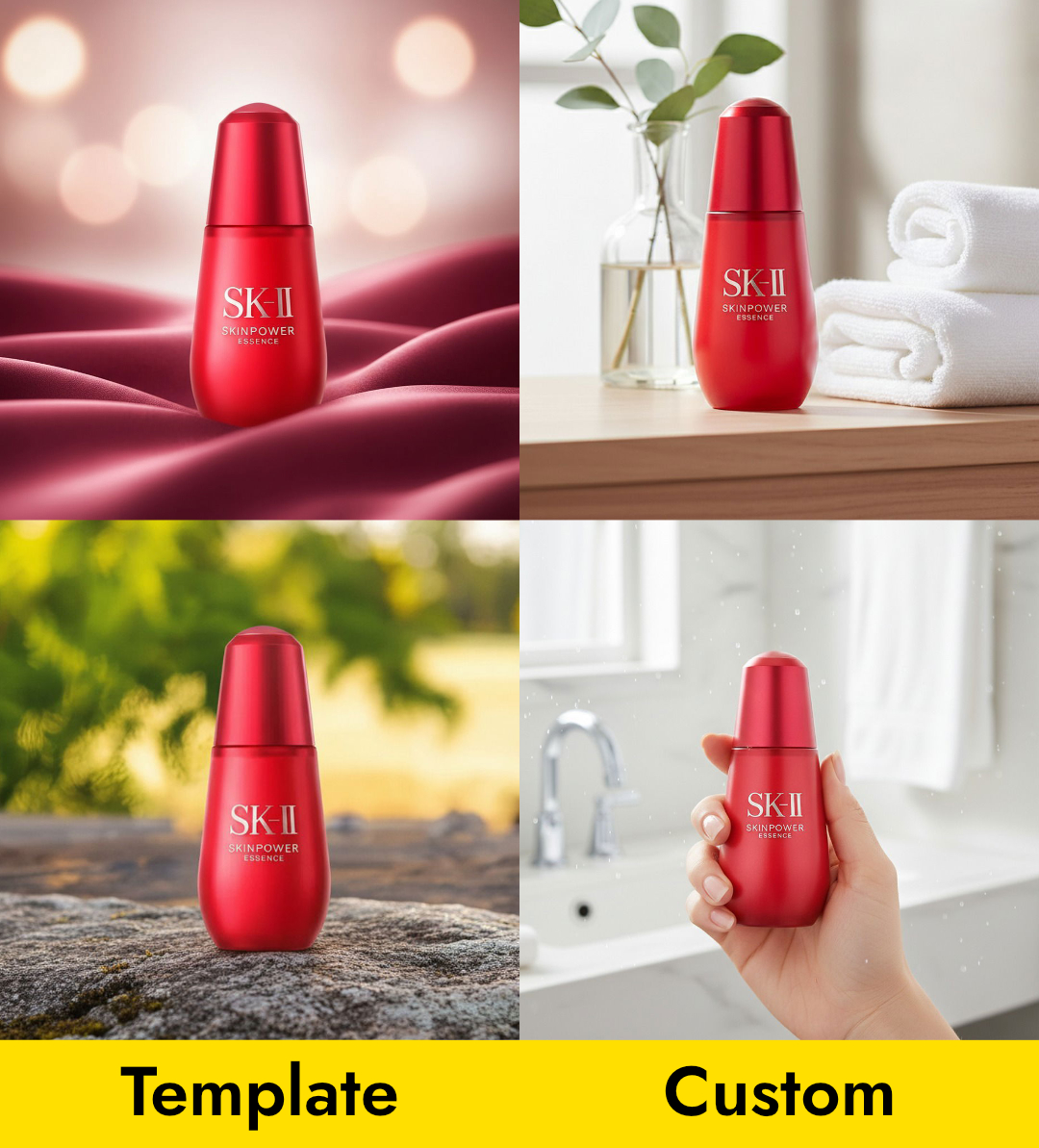
Both results are great. The difference is control. Templates give you reliable, beautiful images with zero effort. Custom prompts give you exactly the shot in your head, if you can describe it well.
Tips for writing good custom prompts
Custom prompts work best when you describe the scene the way you'd describe it to a photographer. Here are some tips:
Be specific about the setting
- Instead of: "on a table"
- Try: "on a rustic wooden table with a linen napkin and a small ceramic bowl of dried lavender"
The more detail you give, the more intentional the result feels.
Mention the lighting
Lighting sets the mood. Include it in your prompt when it matters.
- "Soft golden hour light from the left"
- "Bright, even studio lighting with no shadows"
- "Warm candlelight with a dark background"
Describe the mood, not just the objects
Sometimes it helps to describe the feeling you're going for.
- "Cozy, warm, inviting, like a Sunday morning at home"
- "Clean and minimal, like a high-end skincare ad"
- "Bold and colorful, like a summer campaign"
Start simple and iterate
You don't need to write a perfect prompt on the first try. Start with a short description, generate a few images, then refine based on what you see. Add details, remove what doesn't work, and generate again.
The practical recommendation
Here's the approach that works best for most people:
- Start with templates. When you add a new product, run it through 3-5 templates to quickly see what works. This takes under a minute and gives you a range of options.
- Save what you like. Download the images that work. You might already have everything you need.
- Switch to custom when you have a vision. Once you know what style suits your product, use custom prompts to create specific scenes, lifestyle shots, seasonal campaigns, platform-specific images.
Both modes let you choose your image count (1, 2, or 4) and size (Square 1:1, Portrait 4:5, Story 9:16, Landscape 16:9, or Facebook Ad), so you can generate for any platform regardless of which mode you use.
For a step-by-step walkthrough of the full process, check out How to Create Product Photos in 3 Steps. You can also browse the gallery for inspiration or visit the how-to guides for more tips.
Try both and see what works
The best way to learn is to experiment. Upload a product, try a few templates, then switch to Custom and describe a scene you've been imagining.
Keep learning
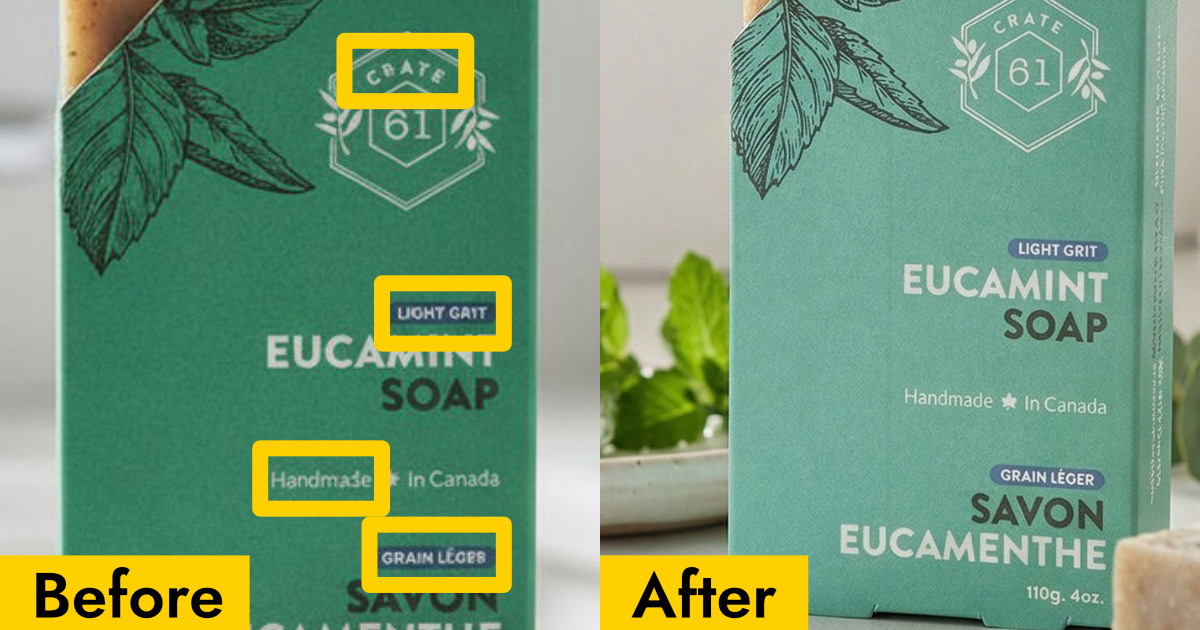
Why Your AI Product Photos Keep Getting the Text Wrong (and How to Fix It)
AI image generators often garble text on products. Learn how Pebblely automatically extracts and preserves text on labels, packaging, and branding.
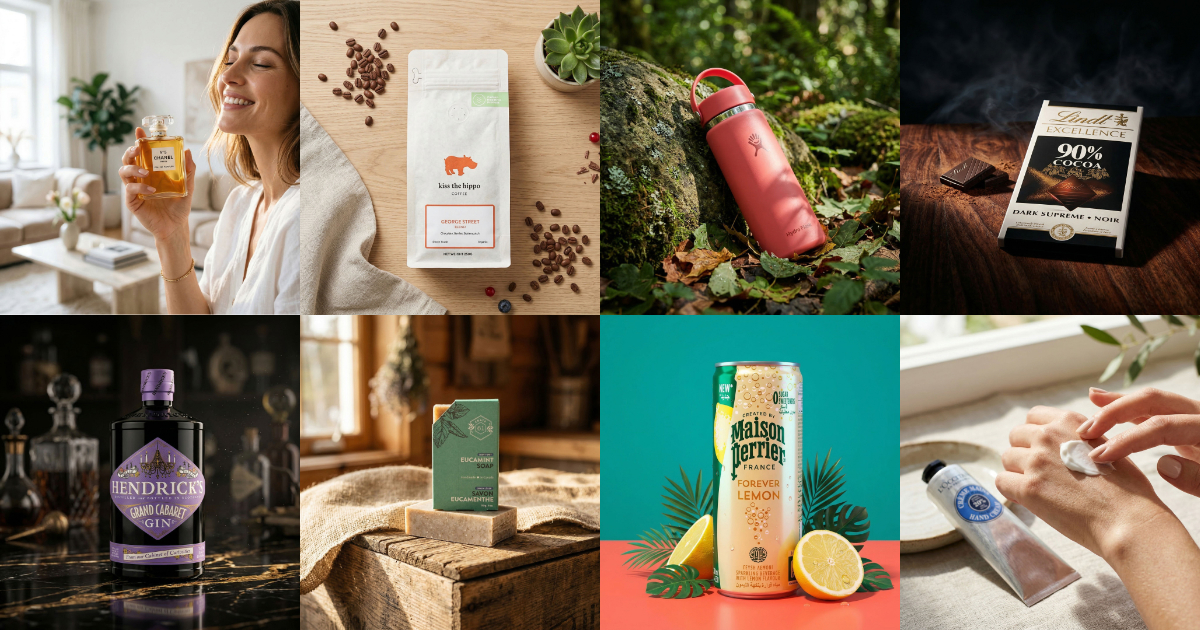
10 AI Product Photography Prompts That Work
Struggling with AI product photo prompts? These 10 tested prompts generate beautiful, realistic product images every time.
How to Create Gorgeous Product Photos in 3 Steps
Learn how to create stunning AI product photos with Pebblely in just 3 steps: add your product, generate, and download. No photoshoot needed.